User Interface
The AlmaSim user interface is designed to maximise the 3D Scene Visualisation whilst minimalising the other tools and panels to support the workflows within the Build and Analyse stages.
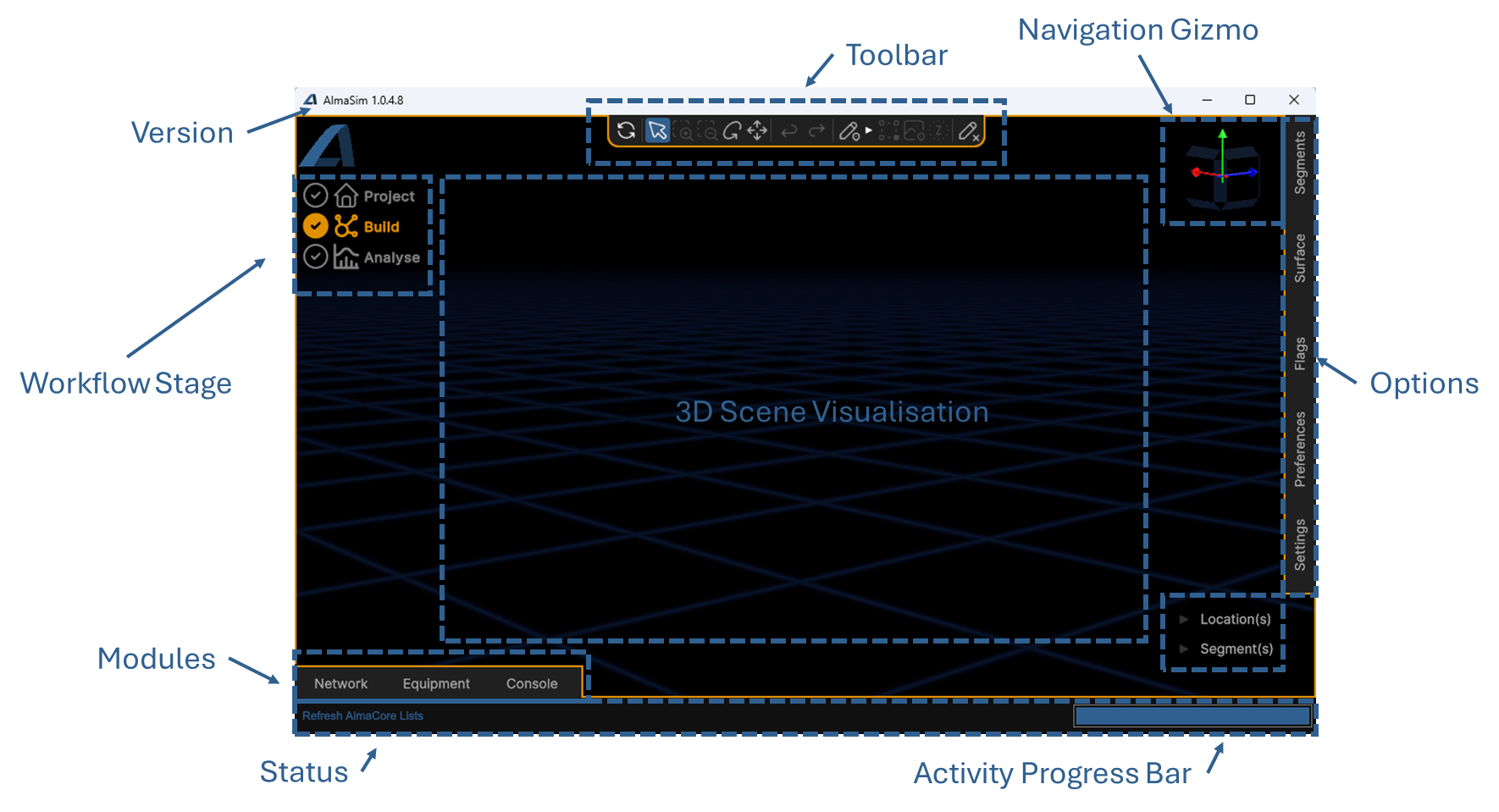 The AlmaSim user interface is designed to maximise the 3D Scene Visualisation whilst minimalising the other tools and panels to support the workflows within the Build and Analyse stages.
Toolbar
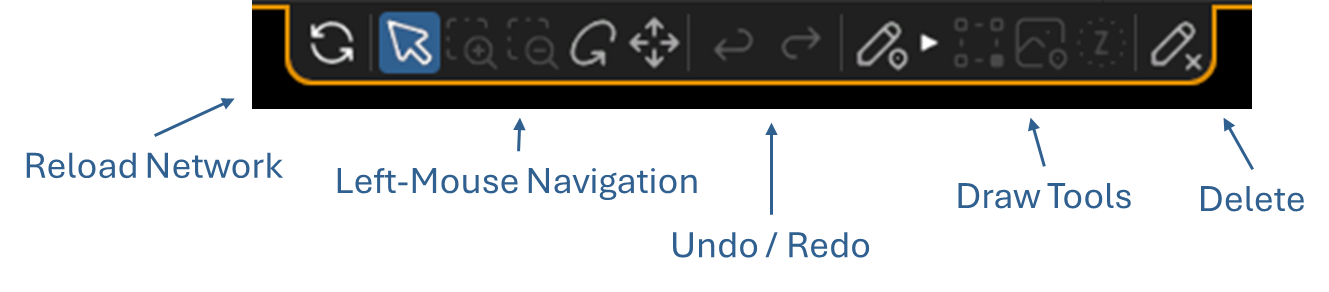 The toolbar on the top-middle holds the following types of tools
| icon | label | description |
|---|---|---|
 | Reload Network | When clicked, AlmaSim's entire 3D scene is reloaded (except for Surface objects) and object references are recalculated (Shortcut ESC) |
 | Select | Selecting or draging will cause object selection |
 | Zoom In | Draging the mouse upward will cause zoom in (to be removed) |
 | Zoom Out | Dragging the mouse downward will cause zoom out (to be removed) |
 | Rotate | Dragging the mouse will rotate the view |
 | Pan | Dragging the mouse will pan the view |
 | Undo | Undo most recent network edit (Shortcut CTRL+Z) |
 | Redo | Redo most recently network edit undo (Shortcut CTRL+Y) |
 | Active Draw | When toggled, draw options activate (Shortcut D) |
 | Snap to Point Only | When toggled, only joins are allowed (Shortcut Q) |
 | Snap to Surface | When toggled, snap tp surface as well as joins are allowed (Shortcut W) |
 | Snap to elevation | Disabled. When toggled, all points will be placed at the specified Elevation (Shortcut E) |
 | Delete | When toggled, any selection in the scene will trigger automatic delete (Shortcut X) |
Navigation Gizmo
The Navigation Gizmo at the Top Right of the UI shows the camera's orientation.
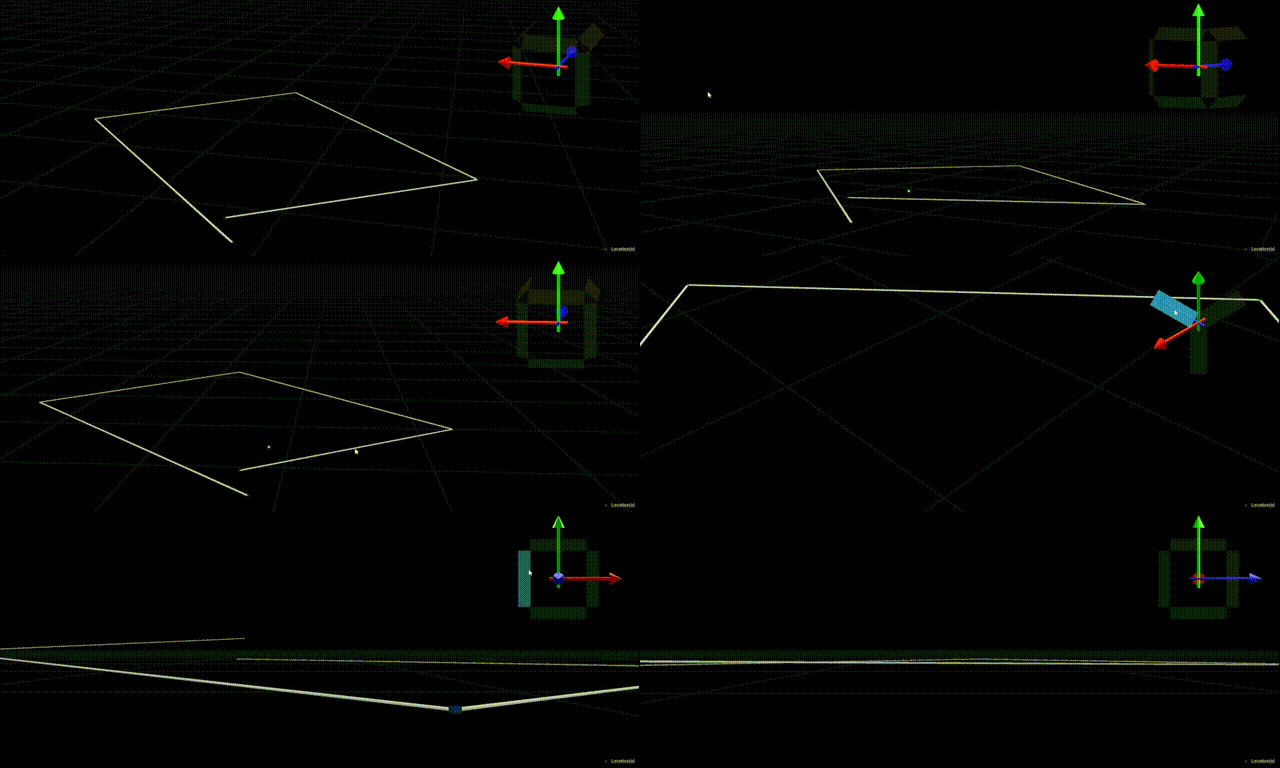
It provide controls to pre-set the viewing angle of the camera based on a cube's sided, edges and corners. Clicking on those geometries centres the camera's position and rotation.
For large networks, the distance from the world's centre and the camera can be manually set in Preferences under AutoZoom scale.
Worlflow Stage
The workfloat is split into two stages: Build and Analyse. Selecting the corresponding label on the top-left panel will active the mode.
Project Dashboard
 The dashboard is a simple panel to support saving and opening projects, viewing license details and provides handy links.
Dashboard
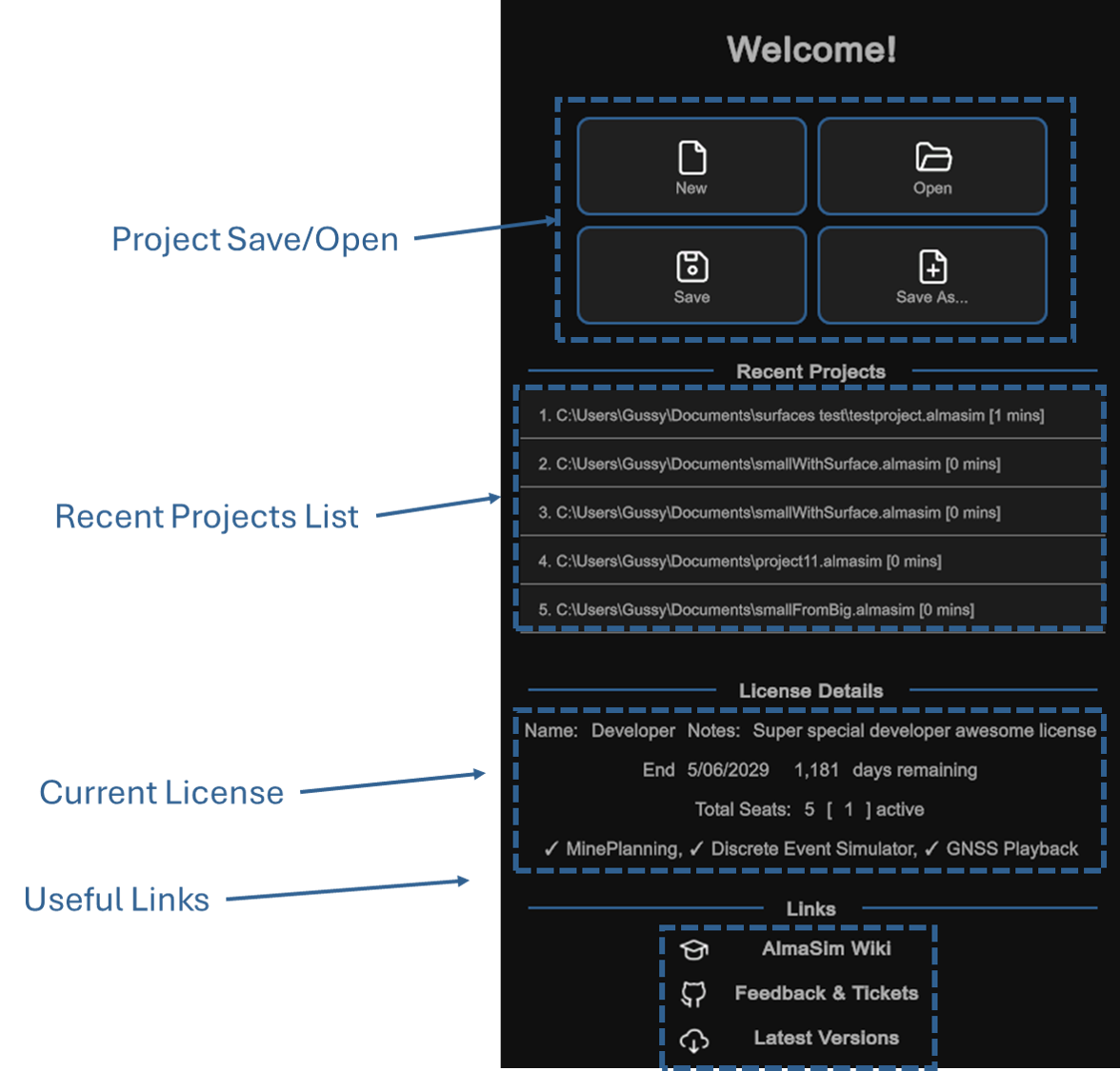
Build Mode
 The Build Mode allows the 3D network and Equipment to be editted. It provides additional Drawing Tools as well as Context menu-properties for selected network objects.
Analyse Mode
 The Analyse Mode activates the various Analysis Modules.
Options Panel
The Options Panel on the Righthand side of the UI provides the following Options:
| Option | Description |
|---|---|
| Segment | Provides toggles to hide and show Segments based on names |
| Surface | Provides toggles for hide and show Surfaces based on names |
| Flags | Provide ability to create and manage Flags, as well as toggled to hide or shows Segments with flags |
| Preferences | AlmaSim cosmetic settings and user preferences. More Info here |
| Settings | AlmaCore settings for how various functionality calculations are made More info here |
Modules Panel
The Modules Panel on the Bottom side of the UI provides the following Modules:
| module | Panel name | Description |
|---|---|---|
| Deterministic | Simulation Table | A UI for producing a Deterministic simulation for a Source --> Destination |
| Deterministic | Analytic Chart | A chart showing the speed profile for a selected Souce --> Destination simulation |
| Mine Plan | Mine Plan | A UI for integrating, validating and producing simulations for a full LOM Mine Plan |
| DES | Des Equipment | A UI for defining the stochastic truck and diggers for a Discrete Event Simulation |
| DES | Des Equipment | A UI for defining the production plan and equipment allocations for a Discrete Event Simulation |
| GNSS Playback | Playback | A UI for defining the production plan and equipment allocations for a Discrete Event Simulation |
| All | Console | A UI for reading logs (standard) and providing custom scripts (advanced user) |
Status Bar
The Status Bar and associated Progress Bar shows the current or most-recent task being performed by AlmaSim. The history is stored in the [Console] *** reference
Cancellation Token
A Cancellation token is bound to most I/O and long running tasks which are pushed onto asynchronous background threads. The cancellation is called via the Escape key or a cancel button